Zeplo Template Configuration in QCall AI
Once your Zeplo credentials are configured (see Zeplo Setup Guide), you can use WhatsApp templates in your QCall AI assistants to send automated messages.How Templates Work
Zeplo templates are WhatsApp Business API message templates that contain placeholders like{{1}}, {{2}}, etc. When QCall AI sends a message, these placeholders are filled with real values extracted from the call conversation.
A typical template structure:
Create an Assistant with Zeplo
To use Zeplo WhatsApp messaging in your AI assistant, you need to add a Send Message action and configure the Zeplo card. Below are all the steps and required fields.Step 1: Create or Edit an Assistant
- Navigate to Assistants from the left sidebar menu.
- Click Create Assistant to create a new one, or click an existing assistant to edit it.
- Fill in the basic assistant details (name, prompt, voice, etc.).
- Scroll down to the Actions section.
Step 2: Add a Send Message Action
- Click Add Action and select Send Message.
- A drawer opens with three messaging options:
- SMS — Send an SMS message
- Zeplo (WhatsApp) — Send a WhatsApp message via Zeplo
- You must enable at least one option to proceed.
If you see a “Configure Zeplo” link instead of the template selector, it means your Zeplo credentials are not yet set up. Click the link to go to the Zeplo configuration page, or follow the Zeplo Setup Guide.
Step 3: Enable Zeplo (WhatsApp)
Check the Zeplo (WhatsApp) checkbox. This reveals the full Zeplo configuration card with the following required and optional fields: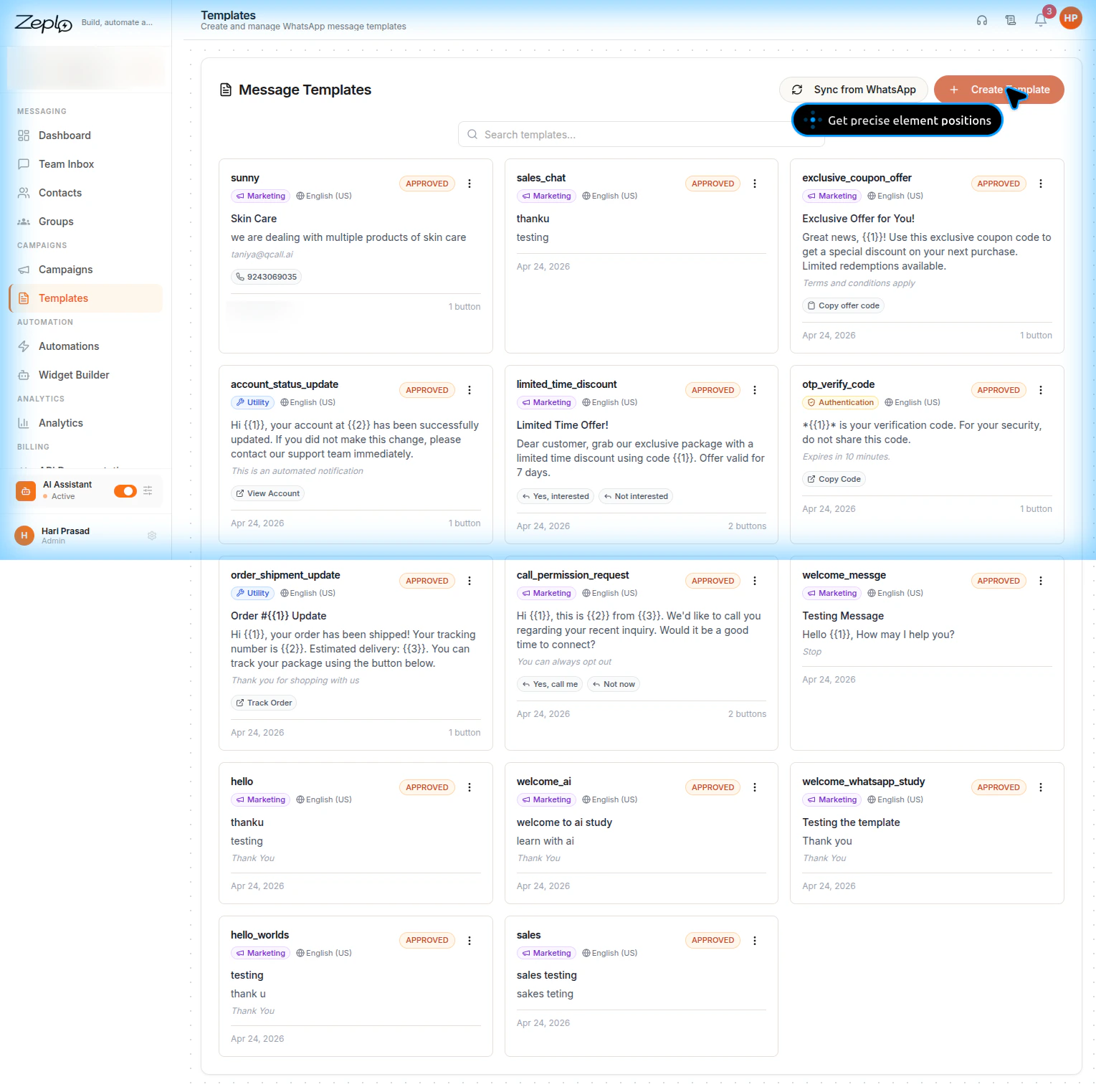
Required Fields (Zeplo Card)
Optional Fields
Step 4: Fill in Parameter Hints
After selecting a template, QCall AI automatically parses all placeholders and displays Parameter Hints input fields. These hints tell the AI what each placeholder represents so it can extract the correct value from the conversation. For example, if your template body is:- Body hint:
Customer's full name - Body hint:
Order number or ID
Step 5: Add a Condition Text
The Condition Text field describes when the WhatsApp message should be sent. This text helps the AI decide the right moment to trigger the message. Examples:"Send order confirmation after the customer places an order""Send appointment reminder with the scheduled date""Send OTP code for verification"
Step 6: Configure Send Timing
Two checkboxes control when the message is sent. Both can be enabled simultaneously:Step 7: Test the Template
Before deploying, test your template configuration:- Click the Test Zeplo button (visible when Zeplo is configured).
- In the test modal:
- Enter a phone number (with country code)
- Select a template
- Fill in the parameter values for each placeholder
- Click Send Test.
- Check if the WhatsApp message was delivered successfully.
Authentication (OTP) Templates
Authentication templates have special handling. Meta requires the same OTP value to appear in both the body and button parameters. QCall AI handles this automatically:- When you select an Authentication category template, you’ll see a warning banner.
- You only need to provide one hint for the OTP value.
- QCall AI will automatically replicate the OTP to all body and button placeholders at send time.
Template Categories
Data Saved per Send Message Action
When you save a Send Message action with Zeplo enabled, the following data structure is stored:Parameter Slot Object
Each entry inparameter_slots has this structure:
Tracking Zeplo Message Status
After sending messages through QCall AI campaigns, you can track the Zeplo delivery status in multiple places:- Campaign Details — Shows
is_zeplo_sentstatus per contact - Call Logs — Displays whether a WhatsApp message was sent for each call
- Call Playground — Shows Zeplo status in the history view