Step-by-Step Zeplo Setup
This guide walks you through creating a Zeplo account, connecting your WhatsApp Business channel, and generating the API credentials needed for QCall AI integration.Step 1: Create a Zeplo Account
- Go to zeplo.ai and click Sign up for free.
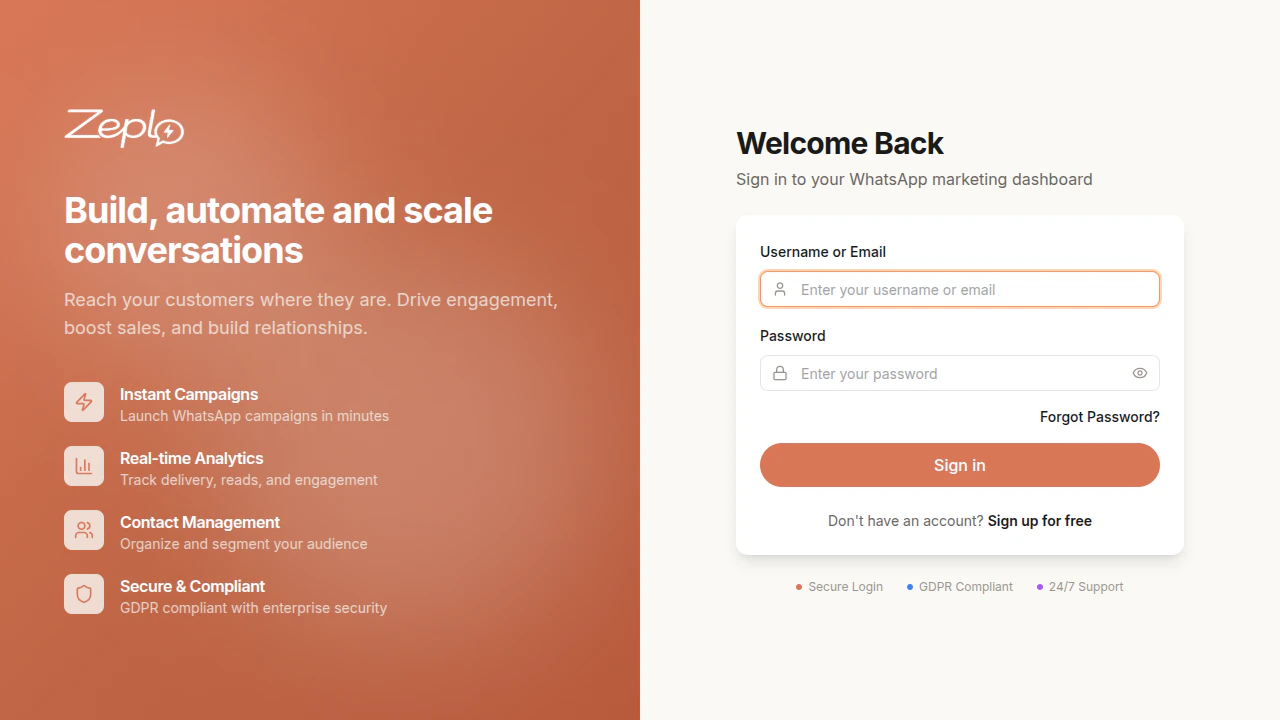
- Fill in your registration details (name, email, password).
- Verify your email address.
- Log in to your new Zeplo account.
Step 2: Connect Your WhatsApp Business Channel
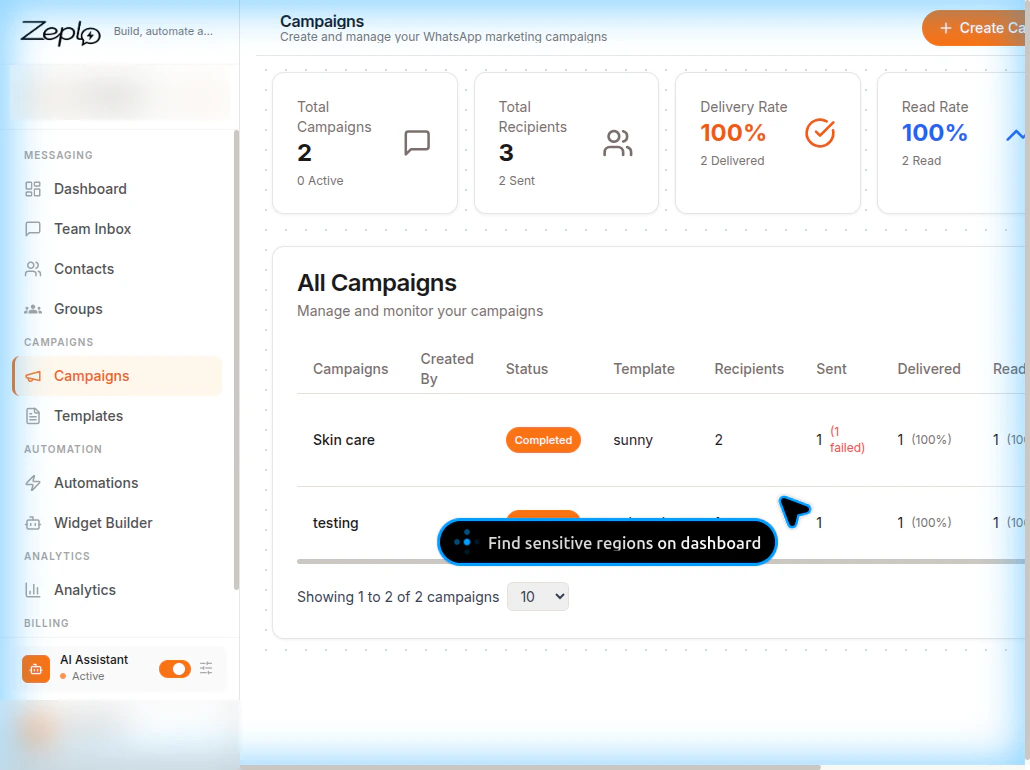
After logging in, you’ll see the Zeplo Dashboard.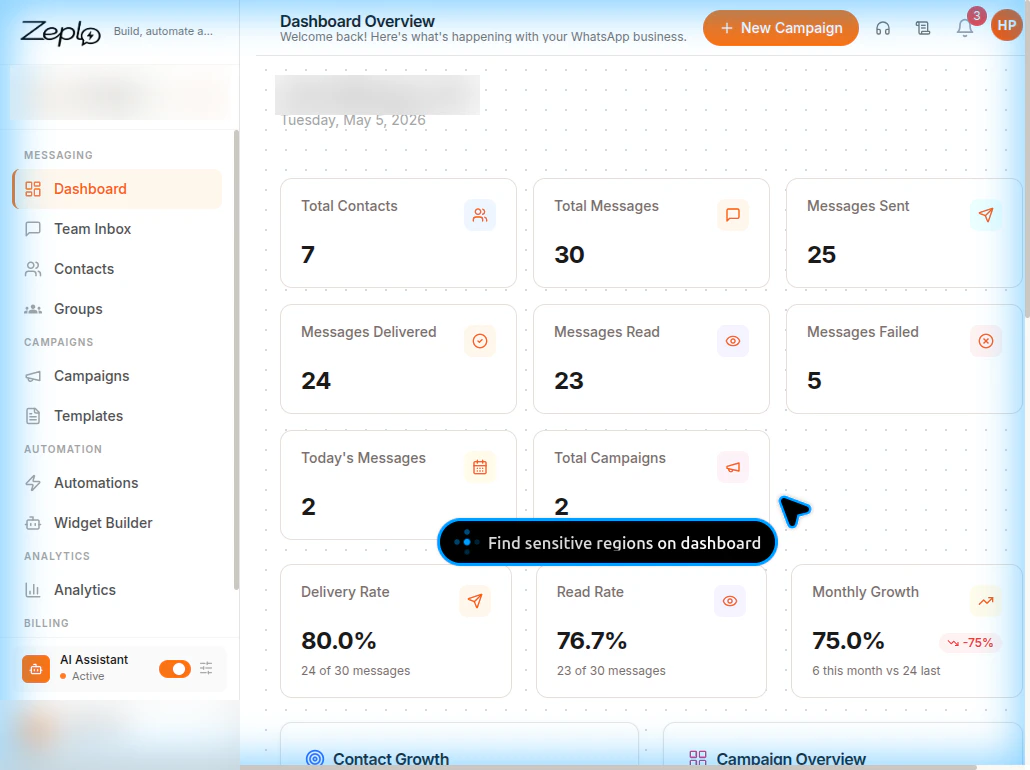
- Navigate to Settings from the left sidebar.
- Under the Channel Setting tab, click Add New Channel.
- Follow the Meta authentication flow to connect your WhatsApp Business phone number.
- Once connected, your channel will appear with a Connected status and health details.
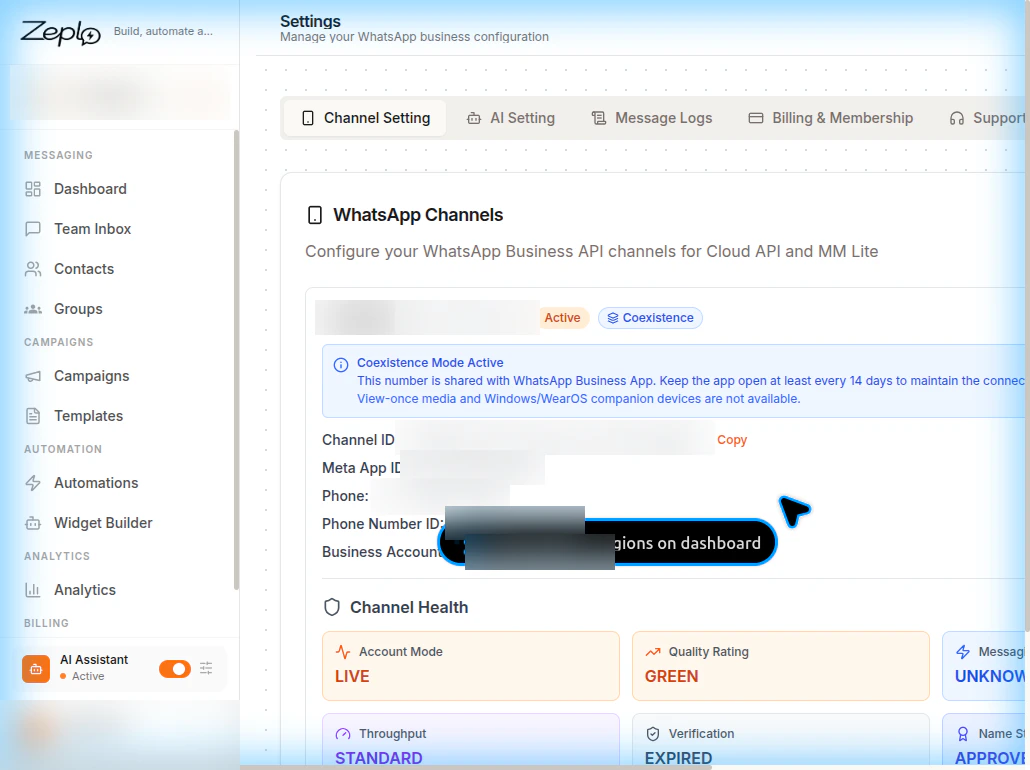
Make sure your WhatsApp Business Account is verified and your app is in LIVE mode for production messaging.
Step 3: Get Your Channel ID
- In Settings → Channel Setting, find your connected channel.
- Locate the Channel ID (a UUID like
fe532ed9-xxxx-xxxx-xxxx-xxxxxxxxxxxx). - Click the Copy button next to it.
- Save this value — you’ll need it for the QCall AI configuration.
Step 4: Generate an API Key and Secret
- Navigate to Settings → API Key Setting tab.
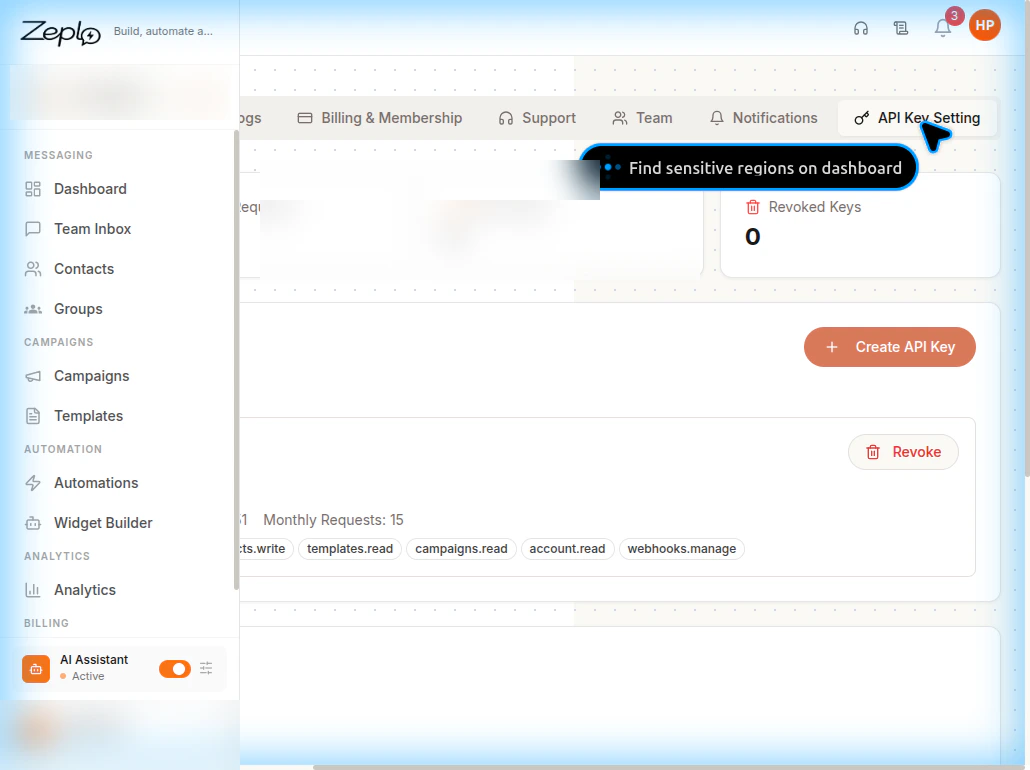
- Click Create API Key.
- Enter a name for the key (e.g., “QCall Integration”).
- Select the following permissions:
messages.sendmessages.readcontacts.readcontacts.writetemplates.readcampaigns.readaccount.readwebhooks.manage
- Click Create.
- A modal will appear with your API Key and API Secret.
Step 5: Note the API Base URL
The Zeplo API base URL is displayed in the API Key Settings section:Step 6: Create WhatsApp Templates
- Navigate to Templates from the left sidebar.
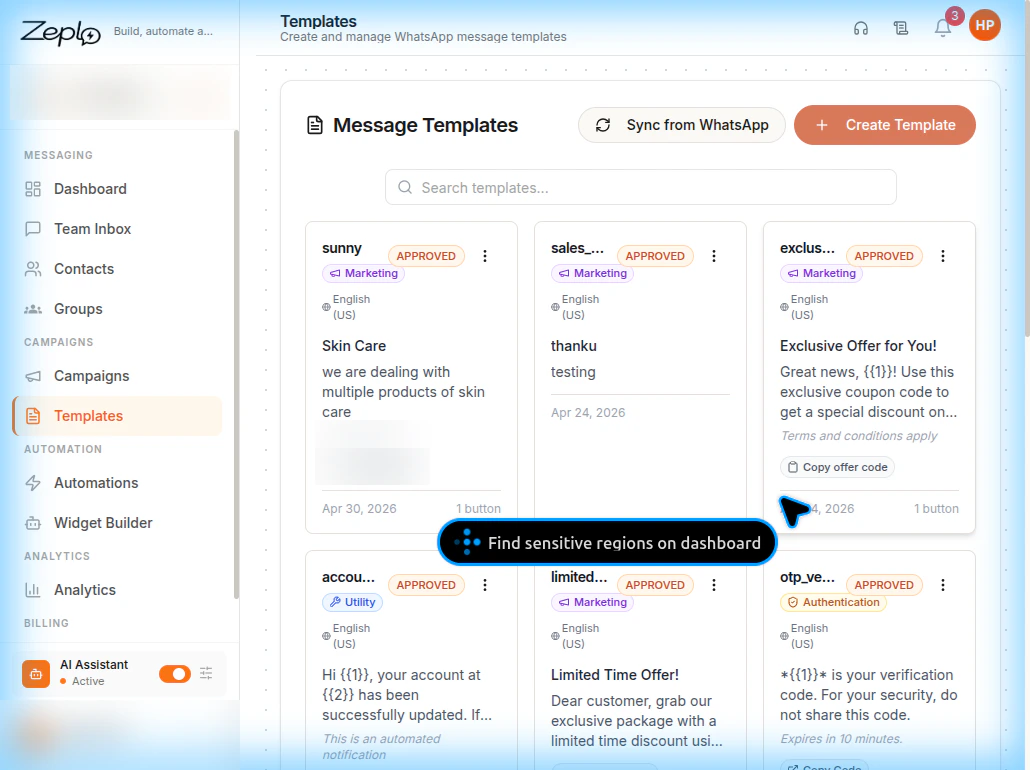
- Click Create Template or Sync from WhatsApp to import existing Meta templates.
-
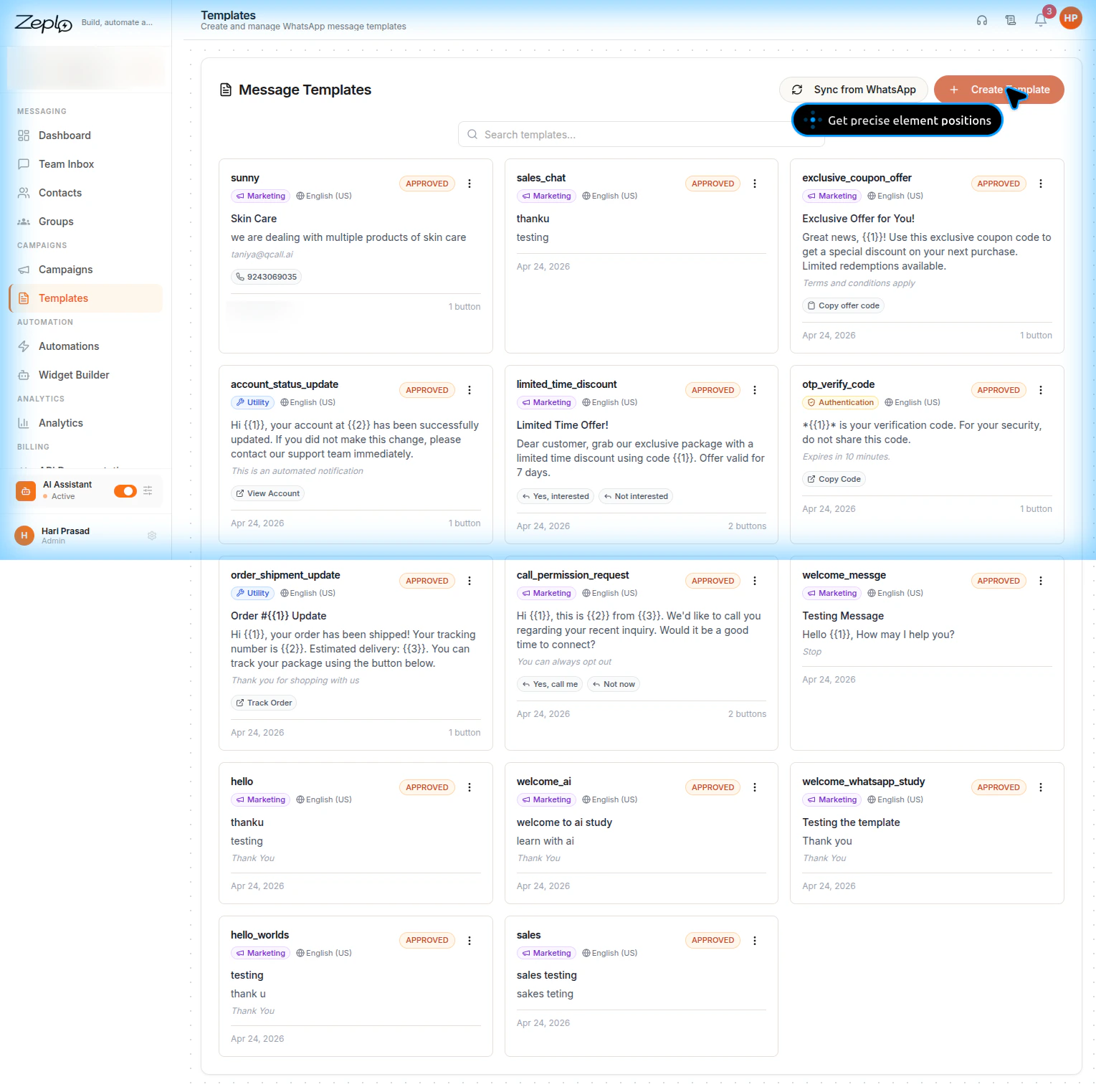
Create templates with the following categories:
- Marketing — Promotional messages, offers, announcements
- Utility — Account updates, order notifications, shipment tracking
- Authentication — OTP verification codes
-
Each template can contain:
- A header (text with optional
{{1}}placeholders) - A body (main message text with
{{1}},{{2}}placeholders) - A footer (static text)
- Buttons (URL buttons can have
{{1}}placeholders)
- A header (text with optional
- Submit templates for Meta approval. Only APPROVED templates can be used.
Step 7: Configure Zeplo in QCall AI
Now that you have your credentials from Zeplo, configure them in QCall AI:- Log in to the QCall AI dashboard.
- Click the QCall AI logo in the top left corner to open the menu.
- Select Integrations.
- In the Integrations section, find the Zeplo card and click on it.
- Enter the following credentials:
- API Key — Paste the API key from Step 4
- API Secret — Paste the API secret from Step 4
- Channel ID — Paste the Channel ID from Step 3
- Click Save.
When editing an existing configuration, the API Secret field can be left blank to keep the current secret unchanged. Only enter a new secret if you want to update it.
Step 8: Test the Connection
After saving your Zeplo credentials in QCall AI:- Go to Assistants → Create or edit an assistant.
- In the Send Message action, enable Zeplo (WhatsApp).
- Select a template from the dropdown.
- Fill in the parameter hints.
- Click the Test Zeplo button.
- Enter a phone number and parameter values.
- Click Send Test to verify the integration is working.
Zeplo Dashboard Overview
The Zeplo dashboard provides several key sections: