> ## Documentation Index
> Fetch the complete documentation index at: https://docs.qcall.ai/llms.txt
> Use this file to discover all available pages before exploring further.
# Zeplo Template Configuration
> Learn how to configure Zeplo WhatsApp templates, parameter hints, and send messages from QCall AI assistants.
## Zeplo Template Configuration in QCall AI
Once your Zeplo credentials are configured (see [Zeplo Setup Guide](/general/integrations/zeploSetup)), you can use WhatsApp templates in your QCall AI assistants to send automated messages.
***
### How Templates Work
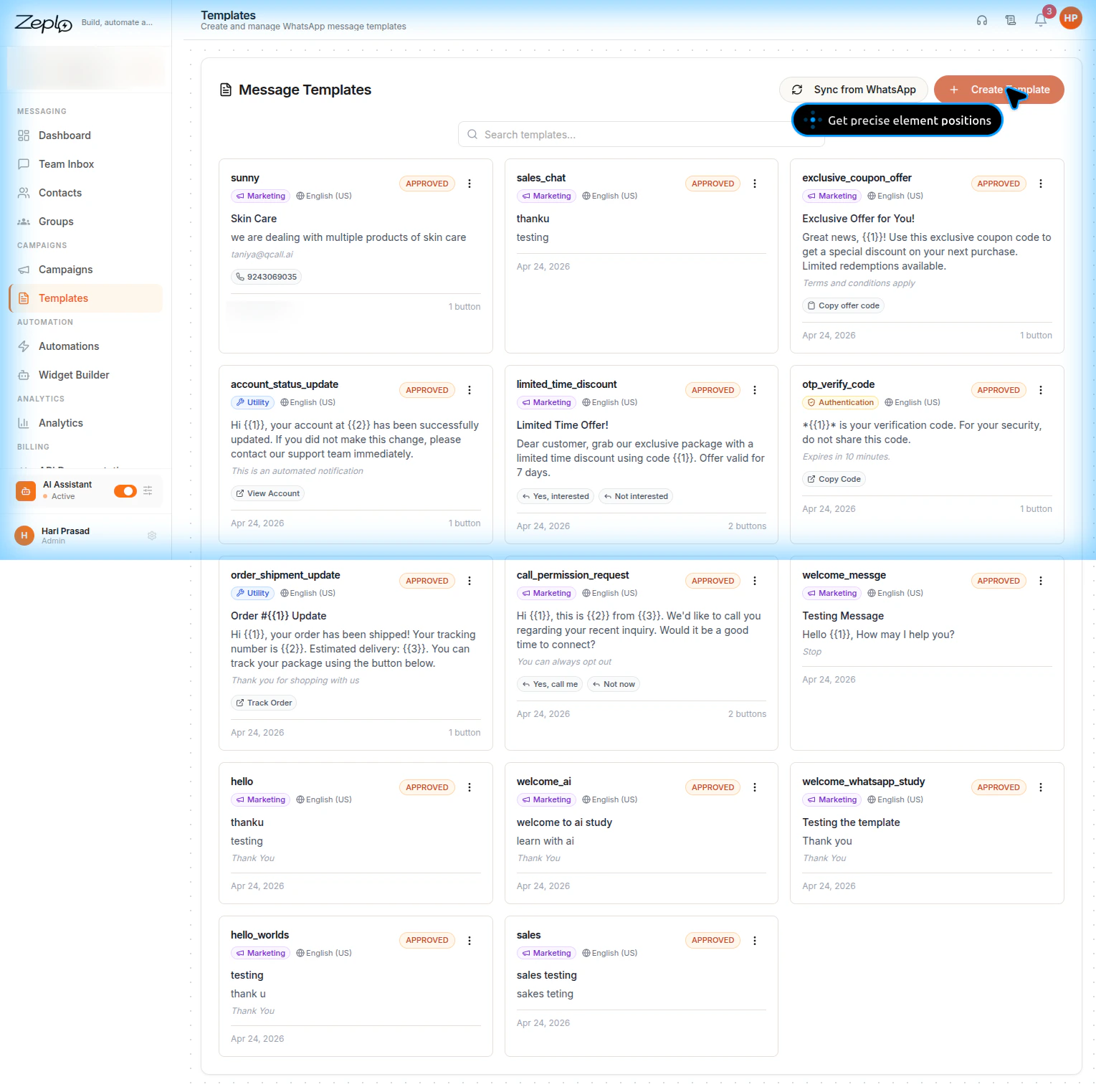
Zeplo templates are WhatsApp Business API message templates that contain placeholders like `{{1}}`, `{{2}}`, etc. When QCall AI sends a message, these placeholders are filled with real values extracted from the call conversation.
A typical template structure:
| Section | Example | Placeholders |
| ---------- | -------------------------------------------------------------------------------------- | -------------------------------------------------------------- |
| **Header** | `Order #{"{{1}}"}` Update | `{"{{1}}"}` = order number |
| **Body** | `Hi {"{{1}}"}, your order has been shipped! Tracking: {"{{2}}"}. Delivery: {"{{3}}"}.` | `{"{{1}}"}` = name, `{"{{2}}"}` = tracking, `{"{{3}}"}` = date |
| **Button** | URL button → Track Order → `https://track.com/{"{{1}}"}` | `{"{{1}}"}` = tracking ID |
***
### Create an Assistant with Zeplo
To use Zeplo WhatsApp messaging in your AI assistant, you need to add a **Send Message** action and configure the Zeplo card. Below are all the steps and required fields.
#### Step 1: Create or Edit an Assistant
1. Navigate to **Assistants** from the left sidebar menu.
2. Click **Create Assistant** to create a new one, or click an existing assistant to edit it.
3. Fill in the basic assistant details (name, prompt, voice, etc.).
4. Scroll down to the **Actions** section.
#### Step 2: Add a Send Message Action
1. Click **Add Action** and select **Send Message**.
2. A drawer opens with three messaging options:
* **SMS** — Send an SMS message
* **Zeplo (WhatsApp)** — Send a WhatsApp message via Zeplo
* You must enable at least one option to proceed.
If you see a **"Configure Zeplo"** link instead of the template selector, it means your Zeplo credentials are not yet set up. Click the link to go to the Zeplo configuration page, or follow the [Zeplo Setup Guide](/general/integrations/zeploSetup).
#### Step 3: Enable Zeplo (WhatsApp)
Check the **Zeplo (WhatsApp)** checkbox. This reveals the full Zeplo configuration card with the following required and optional fields:
 ***
### Required Fields (Zeplo Card)
| Field | Required | Description |
| ----------------------------- | ---------------------------------- | ------------------------------------------------------------------------------------------------------------------------------------------------------- |
| **Zeplo (WhatsApp) checkbox** | Yes | Must be checked to enable Zeplo messaging |
| **Zeplo Template** | Yes | Select an approved WhatsApp template from the dropdown. Templates are fetched from your connected Zeplo account. Only **APPROVED** templates are shown. |
| **Parameter Hints** | Yes (if template has placeholders) | A hint for each `{"{{N}}"}` placeholder describing what value the AI should extract. Every hint must be filled. |
| **Condition Text** | Yes | Describes *when* the WhatsApp message should be sent. This tells the AI the right moment to trigger the message. |
### Optional Fields
| Field | Default | Description |
| -------------------------------------- | --------- | -------------------------------------------------- |
| **Send Zeplo after the call ends** | Unchecked | Message is sent when the call concludes naturally |
| **Send Zeplo if call is not answered** | Unchecked | Message is sent when the recipient doesn't pick up |
***
### Step 4: Fill in Parameter Hints
After selecting a template, QCall AI automatically parses all placeholders and displays **Parameter Hints** input fields. These hints tell the AI what each placeholder represents so it can extract the correct value from the conversation.
For example, if your template body is:
```
Hi {"{{1}}"}, your order {"{{2}}"} has been shipped!
```
You would fill in:
* **Body {"{{1}}"}** hint: `Customer's full name`
* **Body {"{{2}}"}** hint: `Order number or ID`
Parameters are grouped by section:
| Section | Description |
| --------------------------- | --------------------------------------- |
| **Header parameters** | Placeholders in the message header |
| **Body parameters** | Placeholders in the main message body |
| **Button (URL) parameters** | Placeholders in URL button destinations |
**All parameter hints must be filled in.** Leaving a hint empty will cause a validation error and the message will not be sent. This prevents Meta API error #132000.
***
### Step 5: Add a Condition Text
The **Condition Text** field describes *when* the WhatsApp message should be sent. This text helps the AI decide the right moment to trigger the message.
Examples:
* `"Send order confirmation after the customer places an order"`
* `"Send appointment reminder with the scheduled date"`
* `"Send OTP code for verification"`
***
### Step 6: Configure Send Timing
Two checkboxes control when the message is sent. Both can be enabled simultaneously:
| Option | Description |
| -------------------------------------- | -------------------------------------------------- |
| **Send Zeplo after the call ends** | Message is sent when the call concludes naturally |
| **Send Zeplo if call is not answered** | Message is sent when the recipient doesn't pick up |
***
### Step 7: Test the Template
Before deploying, test your template configuration:
1. Click the **Test Zeplo** button (visible when Zeplo is configured).
2. In the test modal:
* Enter a **phone number** (with country code)
* Select a **template**
* Fill in the **parameter values** for each placeholder
3. Click **Send Test**.
4. Check if the WhatsApp message was delivered successfully.
***
### Authentication (OTP) Templates
Authentication templates have special handling. Meta requires the **same OTP value** to appear in both the body and button parameters. QCall AI handles this automatically:
1. When you select an **Authentication** category template, you'll see a warning banner.
2. You only need to provide **one hint** for the OTP value.
3. QCall AI will automatically replicate the OTP to all body and button placeholders at send time.
The test modal also simplifies OTP testing — enter the code once, and it's applied to all slots.
***
### Template Categories
| Category | Description | Use Case |
| ------------------ | --------------------- | ------------------------------------- |
| **Marketing** | Promotional content | Discounts, offers, announcements |
| **Utility** | Transactional updates | Order status, account updates, alerts |
| **Authentication** | Security verification | OTP codes, login verification |
***
### Data Saved per Send Message Action
When you save a Send Message action with Zeplo enabled, the following data structure is stored:
| Key | Type | Description |
| --------------------------------- | --------- | -------------------------------------------------------------- |
| `zeplo.is_zeplo` | boolean | Whether Zeplo messaging is enabled |
| `zeplo.description` | string | The condition text describing when to send |
| `zeplo.content.templateName` | string | Name of the selected WhatsApp template |
| `zeplo.content.language` | string | Template language (e.g. `en_US`) |
| `zeplo.content.category` | string | Template category: `MARKETING`, `UTILITY`, or `AUTHENTICATION` |
| `zeplo.content.parameter_hints` | string\[] | Array of hint strings, aligned 1-to-1 with parameter\_slots |
| `zeplo.content.parameter_slots` | object\[] | Array of slot objects describing each placeholder's position |
| `zeplo.content.components` | array | Always `[]` — built at send time from parameter values |
| `zeplo.end_call_sms` | boolean | Send after call ends |
| `zeplo.end_call_sms_not_answered` | boolean | Send if call not answered |
#### Parameter Slot Object
Each entry in `parameter_slots` has this structure:
| Key | Type | Description |
| ----------- | ------ | ---------------------------------------------------------------------------------------------- |
| `section` | string | `"header"`, `"body"`, or `"button"` |
| `index` | number | For header/body: the `{"{{N}}"}` number (1-based). For button: the button's position (0-based) |
| `sub_index` | number | For button only: the `{"{{N}}"}` number inside the button URL |
| `label` | string | Human-readable label, e.g. `Body {"{{1}}"}` or `Button 0 (Track Order) {"{{1}}"}` |
***
### Tracking Zeplo Message Status
After sending messages through QCall AI campaigns, you can track the Zeplo delivery status in multiple places:
* **Campaign Details** — Shows `is_zeplo_sent` status per contact
* **Call Logs** — Displays whether a WhatsApp message was sent for each call
* **Call Playground** — Shows Zeplo status in the history view
***
### Troubleshooting
| Issue | Solution |
| ---------------------------------- | ---------------------------------------------------------------------------------- |
| Templates not loading | Verify Zeplo credentials are correct and the channel is connected |
| "Configure Zeplo" link shown | Go to Integrations → Zeplo and enter your API Key, Secret, and Channel ID |
| Meta error #132000 | Ensure all parameter hints are filled in the send message action |
| Test message not delivered | Check that the phone number includes the country code and the template is APPROVED |
| OTP not working for auth templates | Verify the template category is set to "AUTHENTICATION" in Zeplo |
***
### API Endpoints Used
QCall AI uses the following backend endpoints to communicate with Zeplo:
| Endpoint | Method | Description |
| -------------------------- | ------ | --------------------------------- |
| `/zeplo/zeplo-config` | GET | Fetch current Zeplo configuration |
| `/zeplo/zeplo-config` | POST | Create new Zeplo configuration |
| `/zeplo/zeplo-update` | PUT | Update existing configuration |
| `/zeplo/zeplo-delete` | DELETE | Remove Zeplo configuration |
| `/zeplo/template-list` | GET | Fetch approved WhatsApp templates |
| `/zeplo/test-zeplo-config` | POST | Send a test message |
***
### Required Fields (Zeplo Card)
| Field | Required | Description |
| ----------------------------- | ---------------------------------- | ------------------------------------------------------------------------------------------------------------------------------------------------------- |
| **Zeplo (WhatsApp) checkbox** | Yes | Must be checked to enable Zeplo messaging |
| **Zeplo Template** | Yes | Select an approved WhatsApp template from the dropdown. Templates are fetched from your connected Zeplo account. Only **APPROVED** templates are shown. |
| **Parameter Hints** | Yes (if template has placeholders) | A hint for each `{"{{N}}"}` placeholder describing what value the AI should extract. Every hint must be filled. |
| **Condition Text** | Yes | Describes *when* the WhatsApp message should be sent. This tells the AI the right moment to trigger the message. |
### Optional Fields
| Field | Default | Description |
| -------------------------------------- | --------- | -------------------------------------------------- |
| **Send Zeplo after the call ends** | Unchecked | Message is sent when the call concludes naturally |
| **Send Zeplo if call is not answered** | Unchecked | Message is sent when the recipient doesn't pick up |
***
### Step 4: Fill in Parameter Hints
After selecting a template, QCall AI automatically parses all placeholders and displays **Parameter Hints** input fields. These hints tell the AI what each placeholder represents so it can extract the correct value from the conversation.
For example, if your template body is:
```
Hi {"{{1}}"}, your order {"{{2}}"} has been shipped!
```
You would fill in:
* **Body {"{{1}}"}** hint: `Customer's full name`
* **Body {"{{2}}"}** hint: `Order number or ID`
Parameters are grouped by section:
| Section | Description |
| --------------------------- | --------------------------------------- |
| **Header parameters** | Placeholders in the message header |
| **Body parameters** | Placeholders in the main message body |
| **Button (URL) parameters** | Placeholders in URL button destinations |
**All parameter hints must be filled in.** Leaving a hint empty will cause a validation error and the message will not be sent. This prevents Meta API error #132000.
***
### Step 5: Add a Condition Text
The **Condition Text** field describes *when* the WhatsApp message should be sent. This text helps the AI decide the right moment to trigger the message.
Examples:
* `"Send order confirmation after the customer places an order"`
* `"Send appointment reminder with the scheduled date"`
* `"Send OTP code for verification"`
***
### Step 6: Configure Send Timing
Two checkboxes control when the message is sent. Both can be enabled simultaneously:
| Option | Description |
| -------------------------------------- | -------------------------------------------------- |
| **Send Zeplo after the call ends** | Message is sent when the call concludes naturally |
| **Send Zeplo if call is not answered** | Message is sent when the recipient doesn't pick up |
***
### Step 7: Test the Template
Before deploying, test your template configuration:
1. Click the **Test Zeplo** button (visible when Zeplo is configured).
2. In the test modal:
* Enter a **phone number** (with country code)
* Select a **template**
* Fill in the **parameter values** for each placeholder
3. Click **Send Test**.
4. Check if the WhatsApp message was delivered successfully.
***
### Authentication (OTP) Templates
Authentication templates have special handling. Meta requires the **same OTP value** to appear in both the body and button parameters. QCall AI handles this automatically:
1. When you select an **Authentication** category template, you'll see a warning banner.
2. You only need to provide **one hint** for the OTP value.
3. QCall AI will automatically replicate the OTP to all body and button placeholders at send time.
The test modal also simplifies OTP testing — enter the code once, and it's applied to all slots.
***
### Template Categories
| Category | Description | Use Case |
| ------------------ | --------------------- | ------------------------------------- |
| **Marketing** | Promotional content | Discounts, offers, announcements |
| **Utility** | Transactional updates | Order status, account updates, alerts |
| **Authentication** | Security verification | OTP codes, login verification |
***
### Data Saved per Send Message Action
When you save a Send Message action with Zeplo enabled, the following data structure is stored:
| Key | Type | Description |
| --------------------------------- | --------- | -------------------------------------------------------------- |
| `zeplo.is_zeplo` | boolean | Whether Zeplo messaging is enabled |
| `zeplo.description` | string | The condition text describing when to send |
| `zeplo.content.templateName` | string | Name of the selected WhatsApp template |
| `zeplo.content.language` | string | Template language (e.g. `en_US`) |
| `zeplo.content.category` | string | Template category: `MARKETING`, `UTILITY`, or `AUTHENTICATION` |
| `zeplo.content.parameter_hints` | string\[] | Array of hint strings, aligned 1-to-1 with parameter\_slots |
| `zeplo.content.parameter_slots` | object\[] | Array of slot objects describing each placeholder's position |
| `zeplo.content.components` | array | Always `[]` — built at send time from parameter values |
| `zeplo.end_call_sms` | boolean | Send after call ends |
| `zeplo.end_call_sms_not_answered` | boolean | Send if call not answered |
#### Parameter Slot Object
Each entry in `parameter_slots` has this structure:
| Key | Type | Description |
| ----------- | ------ | ---------------------------------------------------------------------------------------------- |
| `section` | string | `"header"`, `"body"`, or `"button"` |
| `index` | number | For header/body: the `{"{{N}}"}` number (1-based). For button: the button's position (0-based) |
| `sub_index` | number | For button only: the `{"{{N}}"}` number inside the button URL |
| `label` | string | Human-readable label, e.g. `Body {"{{1}}"}` or `Button 0 (Track Order) {"{{1}}"}` |
***
### Tracking Zeplo Message Status
After sending messages through QCall AI campaigns, you can track the Zeplo delivery status in multiple places:
* **Campaign Details** — Shows `is_zeplo_sent` status per contact
* **Call Logs** — Displays whether a WhatsApp message was sent for each call
* **Call Playground** — Shows Zeplo status in the history view
***
### Troubleshooting
| Issue | Solution |
| ---------------------------------- | ---------------------------------------------------------------------------------- |
| Templates not loading | Verify Zeplo credentials are correct and the channel is connected |
| "Configure Zeplo" link shown | Go to Integrations → Zeplo and enter your API Key, Secret, and Channel ID |
| Meta error #132000 | Ensure all parameter hints are filled in the send message action |
| Test message not delivered | Check that the phone number includes the country code and the template is APPROVED |
| OTP not working for auth templates | Verify the template category is set to "AUTHENTICATION" in Zeplo |
***
### API Endpoints Used
QCall AI uses the following backend endpoints to communicate with Zeplo:
| Endpoint | Method | Description |
| -------------------------- | ------ | --------------------------------- |
| `/zeplo/zeplo-config` | GET | Fetch current Zeplo configuration |
| `/zeplo/zeplo-config` | POST | Create new Zeplo configuration |
| `/zeplo/zeplo-update` | PUT | Update existing configuration |
| `/zeplo/zeplo-delete` | DELETE | Remove Zeplo configuration |
| `/zeplo/template-list` | GET | Fetch approved WhatsApp templates |
| `/zeplo/test-zeplo-config` | POST | Send a test message |